In the vast landscape of digital communication, every character, every word, and indeed, every formatting choice you make, subtly shapes how your message is perceived. It's a delicate dance between clarity, emphasis, and context. Among the most common tools in your typographic toolkit are bold, italic, and underline, but there's a powerful, often misunderstood player: strikethrough. Understanding Strikethrough vs. Other Text Formatting Options (Bold, Italic, Underline) isn't just about aesthetics; it's about conveying precise meaning, managing reader expectations, and even safeguarding accessibility.
This isn't merely about making text look different; it's about making it mean different things. Are you highlighting importance, implying a correction, or just trying to catch an eye? Your choice here impacts everything.
At a Glance: Key Formatting Takeaways
- Strikethrough signifies deleted, incorrect, or irrelevant text, often used for revision or ironic commentary.
- Bold demands attention for critical terms, commands, or user interface elements.
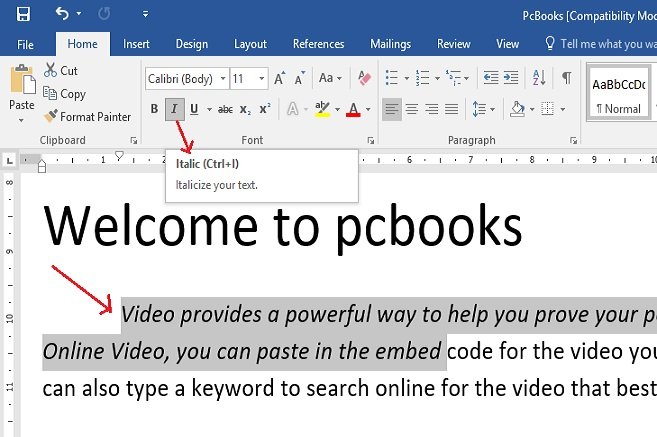
- Italic is perfect for titles, foreign words, or subtle emphasis without shouting.
- Underline should almost exclusively be reserved for hyperlinks to prevent user confusion.
- Logical vs. Physical Tags: Modern web best practices favor tags that convey meaning (like
<strong>for bold importance) over purely visual ones (like<b>for visual bold). - Moderation is Key: Over-formatting any text type dilutes its impact and hurts readability.
Beyond the Basics: What Formatting Really Does (and Doesn't)
At its core, text formatting is about delivering information effectively. You're not just decorating; you're communicating intent. Think of it like this: a whisper, a shout, a correction, or a link—each carries a different weight and purpose.
For web content, this distinction often boils down to a fundamental concept: logical vs. physical HTML tags.
- Logical Tags speak to the meaning or importance of the text. For instance,
<em>(emphasized text) typically looks italic, but its primary job is to tell browsers and screen readers, "Hey, this word is important." Similarly,<strong>(strong importance) usually renders as bold. These tags help assistive technologies and search engines understand the structure and significance of your content. - Physical Tags, on the other hand, are purely visual.
<i>(italic) makes text lean without necessarily implying special emphasis.<b>(bold) thickens text without conveying strong importance. While they achieve the visual effect, they lack the semantic richness that modern web standards encourage.
Understanding this distinction helps you make choices that are not only visually appealing but also accessible, search-engine-friendly, and maintainable. It ensures your message isn't just seen, but truly understood.
Strikethrough: The Art of Revision, Correction, and Irony
Strikethrough, visually represented by a line running through text, is a deceptively simple formatting option with a powerful set of communication capabilities. It doesn't scream for attention like bold, nor does it lend a gentle emphasis like italics. Instead, it signifies removal, irrelevance, or a change of heart.
What Strikethrough Is and How It Works:
At its most basic, strikethrough tells the reader, "This information was here, but it no longer applies." In HTML, the primary semantic tag for strikethrough is <del>, short for "deleted text." There's also <s>, which typically applies a strikethrough but is often seen as less semantically strong than <del> because <del> explicitly marks content as a deletion, especially useful in conjunction with <ins> (inserted text) for showing revisions.
When to Use Strikethrough Effectively:
- Showing Revisions and Edits: This is perhaps its most common and valuable use. When collaborating on documents, contracts, or even blog posts, strikethrough allows you to show what's been removed while keeping it visible for context or audit trails. Think of it as leaving the old version visible while presenting the new one.
- Example: "The meeting is scheduled for Monday Tuesday at 10 AM."
- Correcting Mistakes: If you've published information that later turns out to be incorrect, striking through the erroneous part and adding the correction is a transparent way to update without completely erasing history. It demonstrates accountability.
- Example: "Our original projection was a 15% 10% increase."
- Indicating Deprecation or Obsolescence: For technical documentation, product specifications, or policy documents, strikethrough can mark features, commands, or rules that are no longer supported or are about to be phased out, signaling to users that they should avoid them.
- Example: "This API endpoint is deprecated and will be removed in version 3.0."
- Sarcasm, Irony, or Humor: In informal contexts, strikethrough can be used to imply an unspoken thought or a sarcastic aside. It's like saying, "I mean this, but I also mean the opposite."
- Example: "I'm so thrilled about working late again."
- Pricing Changes/Sales: E-commerce sites frequently use strikethrough on an original price to highlight a discount, making the new, lower price stand out.
- Example: "Original Price: $50 Now: $35"
Before you commit, it's worth understanding when to deploy it effectively. While powerful, overuse or misuse can confuse readers.
Practical Considerations: - Accessibility: Screen readers can announce strikethrough text if programmed to do so, but it's not always a given. If the struck-through text is critical for understanding the current state (e.g., "removed due to error"), consider also adding an explicit note or alternative phrasing.
- Consistency: Like all formatting, decide on a consistent approach. Will you always use it for corrections, or only for deprecation? Your audience will learn to interpret its meaning based on your pattern.
For those getting hands-on with web content, you can delve into the technical specifics of HTML strikethrough tags to ensure semantic correctness. And if you need more visual flair or specific styling, you can always explore CSS for more styling control over how your struck-through text appears.
Not everyone is coding directly in HTML, of course. For those working in content management systems, word processors, or chat apps, using strikethrough is usually a simple click or keyboard shortcut. If you're grappling with documents, resources like applying strikethrough in popular word processors like Google Docs or making sure your Microsoft Word documents convey the right message can be invaluable. And if you just need to quickly generate some struck-through text for a message or a quick draft, there's always a handy strikethrough text generator at your fingertips.
Bold: Commanding Attention and Clarity
Bold text is the megaphone of your content. It’s designed to grab immediate attention, highlighting key information that simply cannot be missed. But just like shouting, too much bolding becomes noise, losing its impact and tiring the reader.
What Bold Is and How It Works:
Bold text appears thicker and darker than surrounding text. In HTML, you have two primary options:
<strong>: This is the logical tag for bold. It signifies that the enclosed text has "strong importance," making it semantically meaningful. This is generally the preferred tag for accessibility and SEO.<b>: This is the physical tag for bold. It visually bolds text without implying any special importance. While it achieves the visual effect, it's less semantically rich than<strong>. Use<b>when you want to draw attention purely for stylistic reasons, and not because the content is inherently more important (e.g., product names in a casual list).
When to Use Bold Effectively:
- Key Terms and Concepts: When introducing a critical term, definition, or concept that readers must grasp, bold it. This helps them scan for crucial information and reinforces learning.
- Example: "The process relies on asynchronous communication to prevent bottlenecks."
- Commands and UI Elements: In instructions or software guides, bolding specific commands, buttons, or menu items makes them easy to spot and follow.
- Example: "Click the Save button, then select File > Export."
- Warnings and Alerts: To ensure readers don't miss crucial warnings, disclaimers, or calls to action.
- Example: "Warning: Proceeding will delete all unsaved changes."
- Headings or Subheadings (in specific contexts): While HTML headings (
<h1>,<h2>, etc.) handle structural importance, sometimes a short phrase within a paragraph might benefit from a bold "mini-heading" to break up text.
- Example: "Best Practice: Always back up your data."
Pitfalls to Avoid: - Overuse: If everything is bold, nothing is. Reserve bold for truly essential information. A good rule of thumb: if you're bolding more than 10-15% of a paragraph, you're likely overdoing it.
- Long Passages: Never bold entire sentences or paragraphs. It makes text incredibly difficult to read, creating a jarring experience for the eye.
- Lack of Consistency: Decide what bold signifies in your content (e.g., always UI elements) and stick to it. Inconsistency forces readers to constantly re-evaluate your formatting choices.
Italic: Emphasis, Titles, and Nuance
Italic text is the sophisticated cousin in the formatting family. It doesn't shout like bold, nor does it correct like strikethrough. Instead, it offers a gentle lean, suggesting emphasis, distinction, or a different kind of content altogether.
What Italic Is and How It Works:
Italic text slopes to the right. Like bold, it has both a logical and a physical HTML tag:
<em>: This is the logical tag for italic. It means "emphasized text," indicating that the enclosed content should be read with a stress or importance that alters the meaning of the sentence.<i>: This is the physical tag for italic. It visually italicizes text without implying emphasis or special importance. It's suitable for terms that are merely different from the surrounding text, such as foreign words or scientific names, where the italics are a typographic convention rather than an emphasis.
When to Use Italic Effectively:
- Titles of Works: Books, movies, plays, albums, periodicals, and other standalone works typically get italicized.
- Example: "Have you read The Hitchhiker's Guide to the Galaxy?"
- Foreign Words or Phrases: When incorporating a term that isn't native to the language of your main text, italics help distinguish it.
- Example: "She had a certain je ne sais quoi about her."
- Emphasis for Clarity: For subtle emphasis that changes the meaning or nuance of a sentence, but doesn't require the strong impact of bold.
- Example: "He said he didn't want the last slice, but his eyes told a different story." (Emphasizes negation)
- Example: "I thought the dog would never stop barking." (Emphasizes duration/intensity)
- Internal Monologue or Thoughts: In narrative writing, italics can represent a character's thoughts, contrasting them with spoken dialogue.
- Uncommon Terms or Jargon: Briefly introducing a specialized term, especially in its first mention, can use italics before moving to normal text.
- Example: "The system experienced significant latency during peak hours."
Pitfalls to Avoid: - Long Passages: Italic text is harder to read than regular text, especially for those with reading difficulties. Avoid italicizing entire paragraphs or lengthy sentences.
- Over-emphasis: If you italicize too many words, you lose the effect of emphasis, and the text becomes visually distracting.
- As a Substitute for Bold: Don't use italics when you truly need strong emphasis or a call to action. Their effect is much gentler.
Underline: The Link That Binds (and Nothing Else)
Of all the formatting options, underline has the most stringent rule in the digital realm: reserve it exclusively for hyperlinks. This isn't just a suggestion; it's a critical best practice for user experience and accessibility.
What Underline Is and How It Works:
Underline places a line directly beneath the text. Historically, in typewritten documents, underlining was the only way to indicate emphasis or titles, as bold and italics weren't readily available. This legacy, unfortunately, created a habit that carried over into early digital content.
In HTML, the legacy tag <u> exists for underlining. However, its use is heavily discouraged for emphasis. The <u> tag technically "represents a span of text with an unarticulated, though explicitly rendered, non-textual annotation, such as labeling the text as being a proper name in Chinese text (a Chinese proper name mark), or labeling the text as being misspelt." This semantic definition is rarely what most people intend when they use it.
For inserted text, the semantic tag <ins> is available, which often displays with an underline by default. This is useful for showing additions alongside <del> (strikethrough) for deletions in revisions.
Why You MUST Reserve Underlining for Hyperlinks:
- User Expectation: Modern web users are conditioned to understand that underlined text is a clickable link. If you underline text for emphasis, users will instinctively try to click it, only to be frustrated when nothing happens. This leads to a poor user experience.
- Accessibility: Screen readers often announce "link" when they encounter underlined text. If your non-link text is underlined, it creates confusion and provides incorrect information to users relying on assistive technologies.
- Readability: Underlining can sometimes make text harder to read, especially if the line cuts through descenders (the parts of letters like 'g', 'j', 'p', 'q', 'y' that dip below the baseline).
- Visual Clutter: Excessive underlining makes a page look busy and unprofessional, detracting from overall readability and clarity.
When to Break the Rule (Almost Never):
There are extremely rare, highly specialized design contexts where underlining might be used for something other than a link (e.g., a deliberate artistic effect, or in a very specific print-only scenario where digital interaction is not a factor). For 99.9% of digital content, especially web pages and documents meant for interaction, do not underline text for emphasis. If you need emphasis, use bold or italics.
The Hidden Layers: Logical vs. Physical Tags Revisited
We touched on this distinction earlier, but it's worth a deeper dive, especially when considering the long-term impact of your formatting choices. Modern web development and content creation strongly lean towards semantic HTML—meaning your tags should describe the purpose or meaning of the content, not just its visual appearance.
Let's re-examine the core comparisons with this lens:
- Bold:
<strong>: "This text is important!" (Logical) – Preferred for emphasis.<b>: "Just make this text bold." (Physical) – Use when bolding is purely stylistic, like product names without emphasizing their importance.- Italic:
<em>: "Emphasize this word to change the sentence's meaning." (Logical) – Preferred for emphasis.<i>: "Make this text italic." (Physical) – Use for foreign words, scientific names, or terms that are typographically distinct but not necessarily emphasized.- Strikethrough & Underline:
<del>: "This text has been deleted." (Logical) – Preferred for strikethrough indicating removal.<ins>: "This text has been inserted." (Logical) – Preferred for underlining indicating addition.<s>: "This text is no longer accurate or relevant." (Slightly less semantic than<del>, but still conveys a meaning of "no longer correct.")<u>: "Underline this text." (Physical/Presentational) – Avoid for emphasis; use only when its specific semantic purpose (like a Chinese proper name mark) is intended, or for legacy reasons.
Why Semantics Matter:- Accessibility: Screen readers rely on semantic tags to interpret content for visually impaired users.
<strong>tells a screen reader, "read this with strong emphasis," while<b>might just be read as normal text with no special vocal intonation. Similarly,<del>and<ins>can inform users that content has changed. - Search Engine Optimization (SEO): While not a primary ranking factor, semantic HTML helps search engines understand the structure and most important parts of your content, potentially improving how your page is indexed and snippets are generated.
- Maintainability: When styling changes are needed, you can target semantic tags with CSS (e.g.,
em { color: blue; }) and all emphasized text will update, rather than having to manually change every instance of a purely visual tag. - Future-Proofing: Semantic tags are more robust against technological changes. As new devices and display methods emerge, content tagged semantically can adapt more easily than content tagged purely for visual presentation.
Choosing Your Formatting Weapon: A Decision Guide
With the various options laid out, how do you make the right call for your content? It boils down to your intent and the context.
Ask Yourself These Questions:
- What's my core purpose?
- Am I marking a change or removal? → Strikethrough (
<del>) - Do I need to highlight crucial information, a command, or a warning? → Bold (
<strong>) - Am I emphasizing a word's nuance, marking a title, or indicating a foreign term? → Italic (
<em>or<i>) - Am I indicating a clickable link? → Underline (via
<a>tag, never for emphasis) - Am I marking new content in a revision? → Underline (
<ins>)
- Is this for emphasis or distinction?
- Emphasis (strong, alters meaning): Bold (
<strong>) or Italic (<em>) - Distinction (different type of content, stylistic): Italic (
<i>) for titles/foreign words, or sometimes<b>for stylistic bold.
- Will this confuse the reader?
- Underlining non-links will confuse.
- Overuse of bold or italics will dilute impact.
- Ambiguous strikethrough (is it deleted, or sarcastic?) can confuse without context.
- What about accessibility and future compatibility?
- Prioritize logical/semantic tags (
<strong>,<em>,<del>,<ins>) over purely physical ones (<b>,<i>,<u>) for better accessibility and SEO.
Quick Decision Matrix:
| Intent | Best Choice | HTML Tag (Semantic/Preferred) | Avoid |
| :----------------------- | :------------------------------------------------- | :-------------------------------- | :-------------------------------------------- |
| Marking Deleted/Incorrect | Strikethrough |<del>(or<s>) | Plain text or simple deletion without history |
| Marking New/Inserted | Underline |<ins>|<u>for emphasis |
| Strong Importance/Key Term | Bold |<strong>| Italics, Underline, Overuse |
| Subtle Emphasis/Nuance | Italic |<em>| Bold, Underline, Long passages |
| Titles/Foreign Words | Italic (for distinction) |<i>| Bold, Underline |
| Hyperlink | Underline (standard browser default for<a>tags) |<a>| Underlining non-links for emphasis |
Practical Implementation: Beyond the Browser
While we've focused heavily on HTML, these principles extend to almost any content creation environment. Whether you're drafting in a CMS (Content Management System), writing a report in Microsoft Word, composing an email, or collaborating in Google Docs, the intent behind your formatting remains the same.
- Word Processors & CMS Editors: Most modern editors (like WordPress, Google Docs, Microsoft Word) offer intuitive buttons for bold, italic, and strikethrough. They often handle the underlying semantic tagging automatically or provide options to choose (e.g.,
<strong>vs<b>). For underline, they'll typically apply it visually, but remember the "links only" rule. - Consistency is King: The most important rule across all platforms is to establish a style guide, even a simple one, and stick to it. If your team uses bold for UI elements, don't suddenly use it for abstract concepts. This builds trust and predictability with your audience.
Common Formatting Missteps to Sidestep
Even with the best intentions, it's easy to fall into formatting traps. Steering clear of these common pitfalls will elevate your content significantly.
- The "Christmas Tree" Effect: This happens when you use too many different formatting styles on a single page or even in a single paragraph. A rainbow of bold, italic, underline, and different colors makes text incredibly difficult to parse and looks unprofessional. Keep it clean and purposeful.
- The Overzealous Bolder: Thinking that every important word needs to be bold. This quickly backfires. If everything is shouting, nothing stands out. Pick your battles and bold only the absolutely critical elements.
- The Misguided Underliner: As reiterated, using underline for emphasis outside of hyperlinks is the cardinal sin of digital formatting. It breaks user expectations and creates accessibility barriers. Just don't do it.
- Ignoring Contextual Nuance: Forgetting that formatting carries meaning. For example, using strikethrough in a formal legal document for sarcasm would be highly inappropriate, whereas it might be perfectly acceptable in a casual blog post.
- Inconsistent Application: One section uses bold for key terms, another uses italics. This lack of uniformity forces your reader to constantly re-evaluate your cues, creating mental friction.
- Neglecting Accessibility: Relying solely on visual cues can exclude users with visual impairments or those using assistive technologies. Semantic tags are your friends here. Always consider how your formatting translates beyond the visual.
Crafting Impactful Content: Your Formatting Toolkit for Clarity and Engagement
At the end of the day, text formatting isn't a frivolous embellishment; it's a strategic tool in your communication arsenal. Mastering Strikethrough vs. Other Text Formatting Options (Bold, Italic, Underline) empowers you to guide your readers, clarify complex ideas, and infuse your writing with personality and precision.
Think of yourself as a conductor, directing your audience's attention and understanding with each carefully chosen note. Bold directs the spotlight, italics add a whisper of nuance, and strikethrough acknowledges the past while moving forward. And the underline? It's the clear, unmistakable invitation to explore further.
By approaching formatting with intention, consistency, and a deep respect for your audience's experience, you'll move beyond merely presenting information to truly communicating it. Your content will be clearer, more engaging, and ultimately, more effective—a testament to the power of thoughtful design, right down to the last character.